
Custom S3 Storage
Configure Vuon to use your own AWS S3 buckets for query results and file storage.
Overview
By default, Vuon stores query results and uploaded files in Vuon-managed S3 buckets. For organizations with data residency requirements or compliance needs, you can configure Vuon to use buckets in your own AWS account.
Key Benefits:
- Data at rest stays in your AWS account, under encryption you control
- AWS-enforced isolation from other Vuon tenants
- Access is revocable at any time, with every request logged in your own CloudTrail
How it works
You grant access through a policy in your own account — Vuon stores no long-lived keys and authenticates with short-lived STS credentials. The grant is scoped two ways, both enforced by AWS:
- To your buckets only. The policy names your specific upload and cache buckets; access can never extend beyond them.
- To your organization only. It is conditioned on
aws:PrincipalTag/CustomerOrgmatching your organization ID. So even though it grants Vuon's AWS account, only a request carrying your organization's tag can read or write your data — no other Vuon customer, and no untagged Vuon principal, can.
The condition keys on the tag, not a specific Vuon role ARN, so it keeps working as Vuon's infrastructure evolves; your organization ID is immutable, so it also survives an organization-slug change. You set it once.
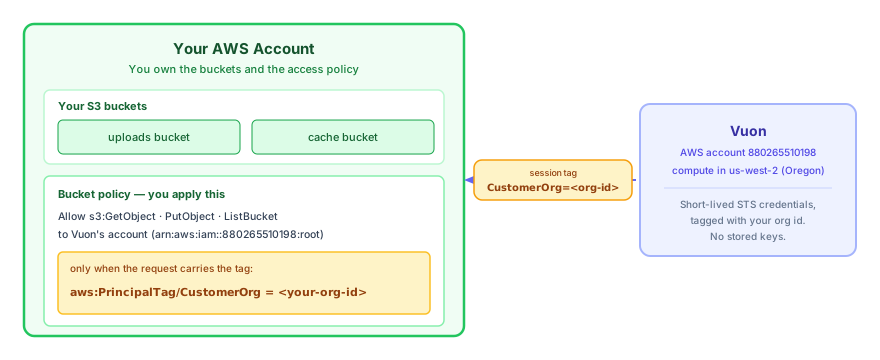
Vuon operates in us-west-2 (Oregon). To run queries and prepare files, Vuon's compute reads your data there transiently, then writes results back to your buckets; nothing is persisted on Vuon's side. Buckets can be in any region, though us-west-2 has the lowest latency.
Prerequisites
Before starting, ensure you have:
- AWS account with permissions to create S3 buckets and bucket policies
- Your Vuon organization ID (the
org_…identifier Vuon provides for your workspace, used in the bucket policy condition below)
Setup steps
Step 1: Create S3 buckets
Create two S3 buckets in your AWS account:
| Bucket Purpose | Recommended Naming | Description |
|---|---|---|
| Uploads | {company}-vuon-uploads | User file uploads, CSVs, exports |
| Cache | {company}-vuon-cache | Query result caching |
Using AWS CLI:
# Create uploads bucket
aws s3api create-bucket \
  --bucket {company}-vuon-uploads \
  --region us-west-2 \
  --create-bucket-configuration LocationConstraint=us-west-2

# Create cache bucket
aws s3api create-bucket \
  --bucket {company}-vuon-cache \
  --region us-west-2 \
  --create-bucket-configuration LocationConstraint=us-west-2
Block public access (required for both buckets):
aws s3api put-public-access-block \
  --bucket {company}-vuon-uploads \
  --public-access-block-configuration \
    BlockPublicAcls=true,IgnorePublicAcls=true,BlockPublicPolicy=true,RestrictPublicBuckets=true

aws s3api put-public-access-block \
  --bucket {company}-vuon-cache \
  --public-access-block-configuration \
    BlockPublicAcls=true,IgnorePublicAcls=true,BlockPublicPolicy=true,RestrictPublicBuckets=true
Step 2: Configure bucket policies
Add the following policy to both buckets. Replace {your-org-id} with your Vuon organization ID and {company} with your company name in the bucket names.
Apply to uploads bucket:
aws s3api put-bucket-policy --bucket {company}-vuon-uploads --policy '{
  "Version": "2012-10-17",
  "Statement": [
    {
      "Sid": "AllowVuonListBucket",
      "Effect": "Allow",
      "Principal": {
        "AWS": "arn:aws:iam::880265510198:root"
      },
      "Action": "s3:ListBucket",
      "Resource": "arn:aws:s3:::{company}-vuon-uploads",
      "Condition": {
        "StringEquals": {
          "aws:PrincipalTag/CustomerOrg": "{your-org-id}"
        }
      }
    },
    {
      "Sid": "AllowVuonObjectAccess",
      "Effect": "Allow",
      "Principal": {
        "AWS": "arn:aws:iam::880265510198:root"
      },
      "Action": [
        "s3:GetObject",
        "s3:PutObject",
        "s3:DeleteObject",
        "s3:GetObjectTagging",
        "s3:PutObjectTagging"
      ],
      "Resource": "arn:aws:s3:::{company}-vuon-uploads/*",
      "Condition": {
        "StringEquals": {
          "aws:PrincipalTag/CustomerOrg": "{your-org-id}"
        }
      }
    }
  ]
}'
Apply to cache bucket:
aws s3api put-bucket-policy --bucket {company}-vuon-cache --policy '{
  "Version": "2012-10-17",
  "Statement": [
    {
      "Sid": "AllowVuonListBucket",
      "Effect": "Allow",
      "Principal": {
        "AWS": "arn:aws:iam::880265510198:root"
      },
      "Action": "s3:ListBucket",
      "Resource": "arn:aws:s3:::{company}-vuon-cache",
      "Condition": {
        "StringEquals": {
          "aws:PrincipalTag/CustomerOrg": "{your-org-id}"
        }
      }
    },
    {
      "Sid": "AllowVuonObjectAccess",
      "Effect": "Allow",
      "Principal": {
        "AWS": "arn:aws:iam::880265510198:root"
      },
      "Action": [
        "s3:GetObject",
        "s3:PutObject",
        "s3:DeleteObject",
        "s3:GetObjectTagging",
        "s3:PutObjectTagging"
      ],
      "Resource": "arn:aws:s3:::{company}-vuon-cache/*",
      "Condition": {
        "StringEquals": {
          "aws:PrincipalTag/CustomerOrg": "{your-org-id}"
        }
      }
    }
  ]
}'
Step 3: Configure CORS on cache bucket
Add CORS configuration to the cache bucket to allow browser-based downloads of query results:
aws s3api put-bucket-cors --bucket {company}-vuon-cache --cors-configuration '{
  "CORSRules": [
    {
      "AllowedHeaders": ["*"],
      "AllowedMethods": ["GET", "HEAD"],
      "AllowedOrigins": [
        "https://*.vuon.ai",
        "https://vuon.ai"
      ],
      "ExposeHeaders": ["ETag", "Content-Range", "Content-Length"],
      "MaxAgeSeconds": 3600
    }
  ]
}'
CORS is required on the cache bucket because query results are downloaded directly by the browser. The uploads bucket does not need CORS since file uploads use server-side presigned URLs.
If you use the same bucket for both uploads and cache, apply this CORS configuration to that shared bucket.
Step 4: (Optional) Configure KMS encryption
If using SSE-KMS encryption with a customer-managed key, grant Vuon's role access to your KMS key.
Add this statement to your KMS key policy (replace {your-org-id} with your Vuon organization ID):
{
  "Sid": "AllowVuonKMSAccess",
  "Effect": "Allow",
  "Principal": {
    "AWS": "arn:aws:iam::880265510198:root"
  },
  "Action": [
    "kms:Decrypt",
    "kms:Encrypt",
    "kms:GenerateDataKey"
  ],
  "Resource": "*",
  "Condition": {
    "StringEquals": {
      "aws:PrincipalTag/CustomerOrg": "{your-org-id}"
    }
  }
}
Step 5: Configure buckets in Vuon
After configuring your buckets and policies, update your database configuration in Vuon:
- Go to Admin → Databases
- Click the settings icon (gear) on your database connection
- Select S3 as the storage provider
- Enter the following fields:
- S3 Upload Bucket: Your uploads bucket name
- S3 Cache Bucket: Your cache bucket name
- AWS Region: The region where your buckets are located (defaults to
us-west-2)
- Click Save to apply the configuration
After saving, the S3 storage status will show as Pending. Wait until the status changes to Ready before testing the integration.
Both upload and cache bucket fields must be specified together. You may enter the same bucket name in both fields if you want uploads and cache to share a single bucket.
Only organization admins can access database configuration settings.
Security considerations
| Practice | Description |
|---|---|
| Block public access | Enable all public access blocks on both buckets |
| Enable versioning | Protect against accidental deletions (optional) |
| Enable access logging | Log all S3 requests to a separate bucket |
| Use KMS encryption | Use customer-managed keys for additional control |
| Enable CloudTrail | Audit all API calls to your buckets |
Troubleshooting
Access denied errors
- Check S3 storage status - Ensure the status shows Ready in Admin → Databases
- Verify bucket policy condition uses your correct organization ID:
"aws:PrincipalTag/CustomerOrg": "<your-org-id>"(andPrincipalisarn:aws:iam::880265510198:root) - Check bucket names match exactly (case-sensitive)
- Verify Resource ARNs include both the bucket (
arn:aws:s3:::bucket) and objects (arn:aws:s3:::bucket/*) patterns
Browser download failures (query results)
If you see TypeError: Failed to fetch when viewing query results:
- Verify CORS configuration is applied to the cache bucket, or to the shared bucket if uploads and cache use the same bucket
- Check AllowedOrigins includes
https://*.vuon.aiandhttps://vuon.ai - Verify AllowedMethods includes
GETandHEAD - Clear browser cache - The browser may have cached a failed CORS preflight. Try a hard refresh (
Cmd+Shift+R/Ctrl+Shift+R) or incognito window.
KMS decryption failures
- Verify KMS key policy includes the
aws:PrincipalTag/CustomerOrgcondition with your organization ID - Ensure key is in the same region as the bucket
- Check that key is enabled and not pending deletion
General issues
- Confirm buckets are created in a supported region
- Check CloudTrail logs for detailed error information
- Contact support with your organization ID and error details
Frequently asked questions
Can I use a single bucket for both uploads and cache?
Yes. You can use a single bucket for both uploads and cache.
Vuon stores uploads and cached query results under different prefixes, so the objects do not collide. If you use a shared bucket, make sure it includes the required CORS configuration for query-result downloads. Separate buckets are still recommended if you want different lifecycle, retention, or access policies for uploads and cache.
What regions are supported?
Any AWS region is supported. We recommend us-west-2 for lowest latency to Vuon's infrastructure. If your analytical database is in a different region, consider placing buckets in that region.
How do I verify the integration is working?
After configuration, run a query and check that the results are cached in your bucket. Query cache files are stored with the prefix {org-id}/query-cache/parquet/. You can also upload a CSV file and verify it appears under {org-id}/uploads/.
Can I migrate existing data to my buckets?
When you configure custom buckets, new data will automatically go to your buckets. Existing cached query results will remain in their previous location and become inaccessible through Vuon (you can re-run queries to regenerate them). Contact support if you need to discuss migration of historical file uploads.
Is there additional latency with custom buckets?
No. Cross-account IAM role assumption adds negligible overhead. For lowest latency, place your buckets in us-west-2 where Vuon's infrastructure runs.
How does this affect my AWS bill?
You will see S3 storage and request charges in your AWS account for data stored in your buckets. Cross-account access from Vuon does not incur additional AWS charges beyond standard S3 pricing.